BridgeDrop
Share big files with your team, Mac to Mac, on the same Wi-Fi.
Free with any account.
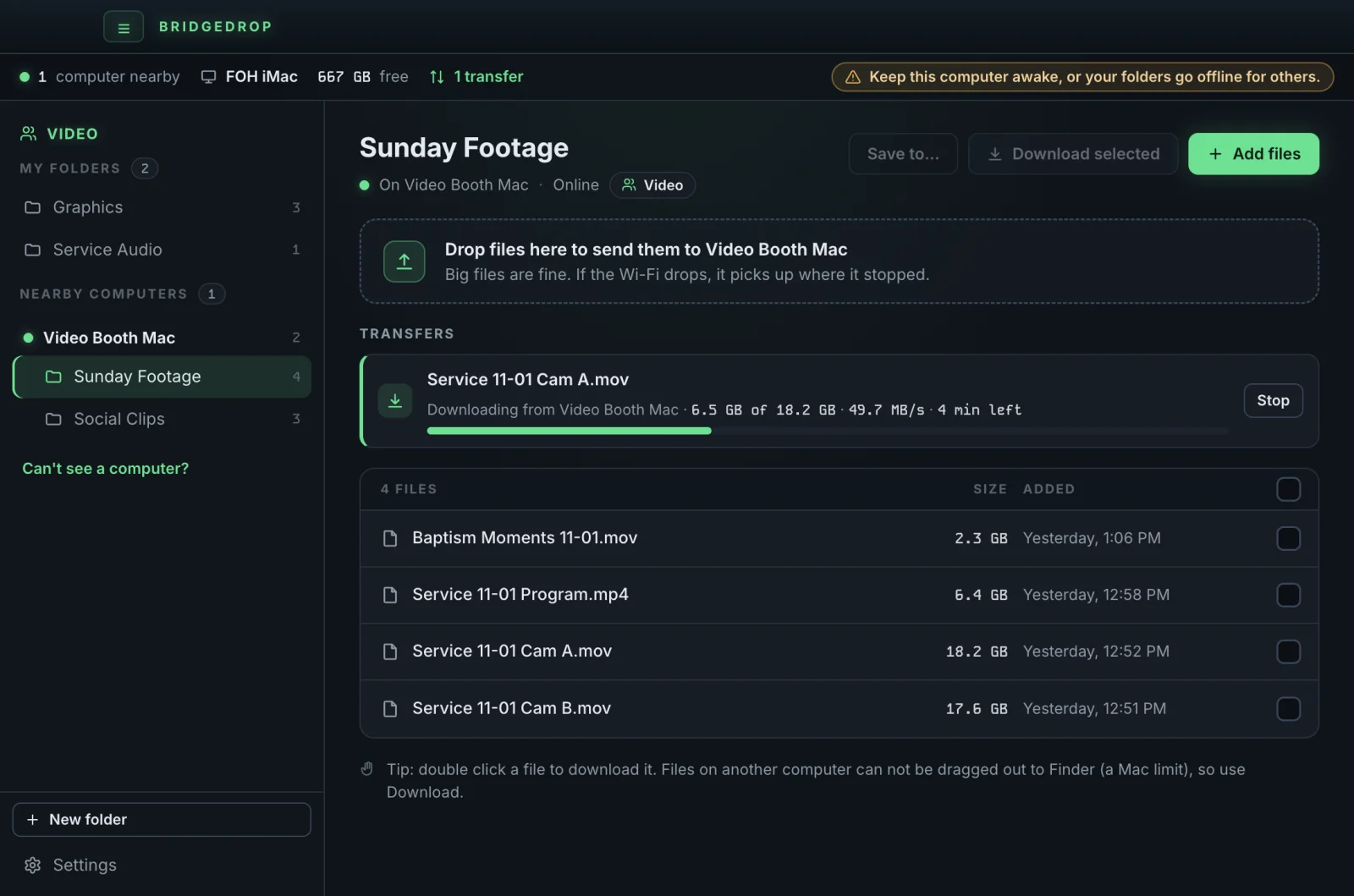
Big files, straight from Mac to Mac
Open a teammate's folder and double click a file to download it.
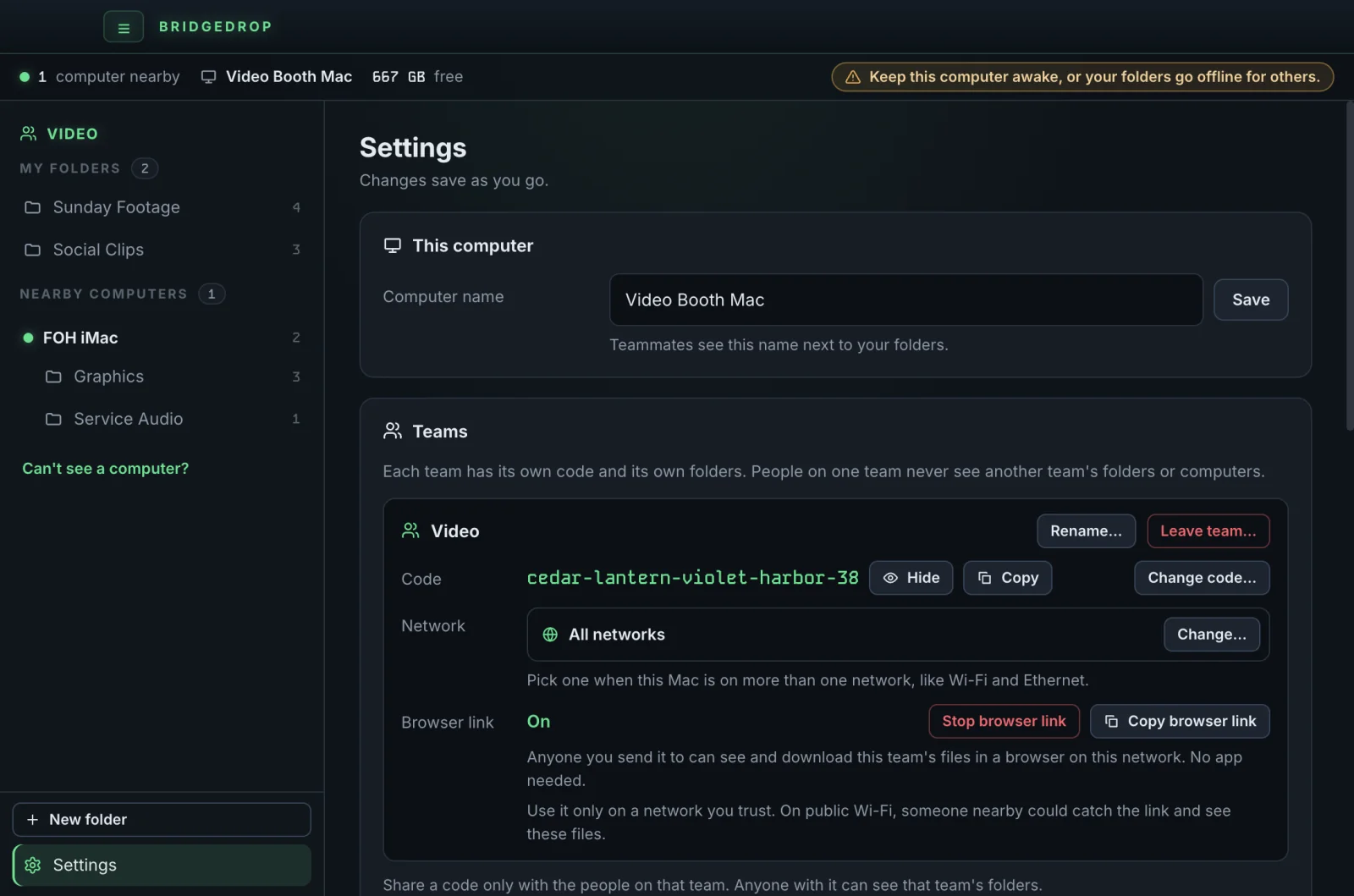
One code for your team
Teammates join with the code. Only the Mac that started the team can change it.
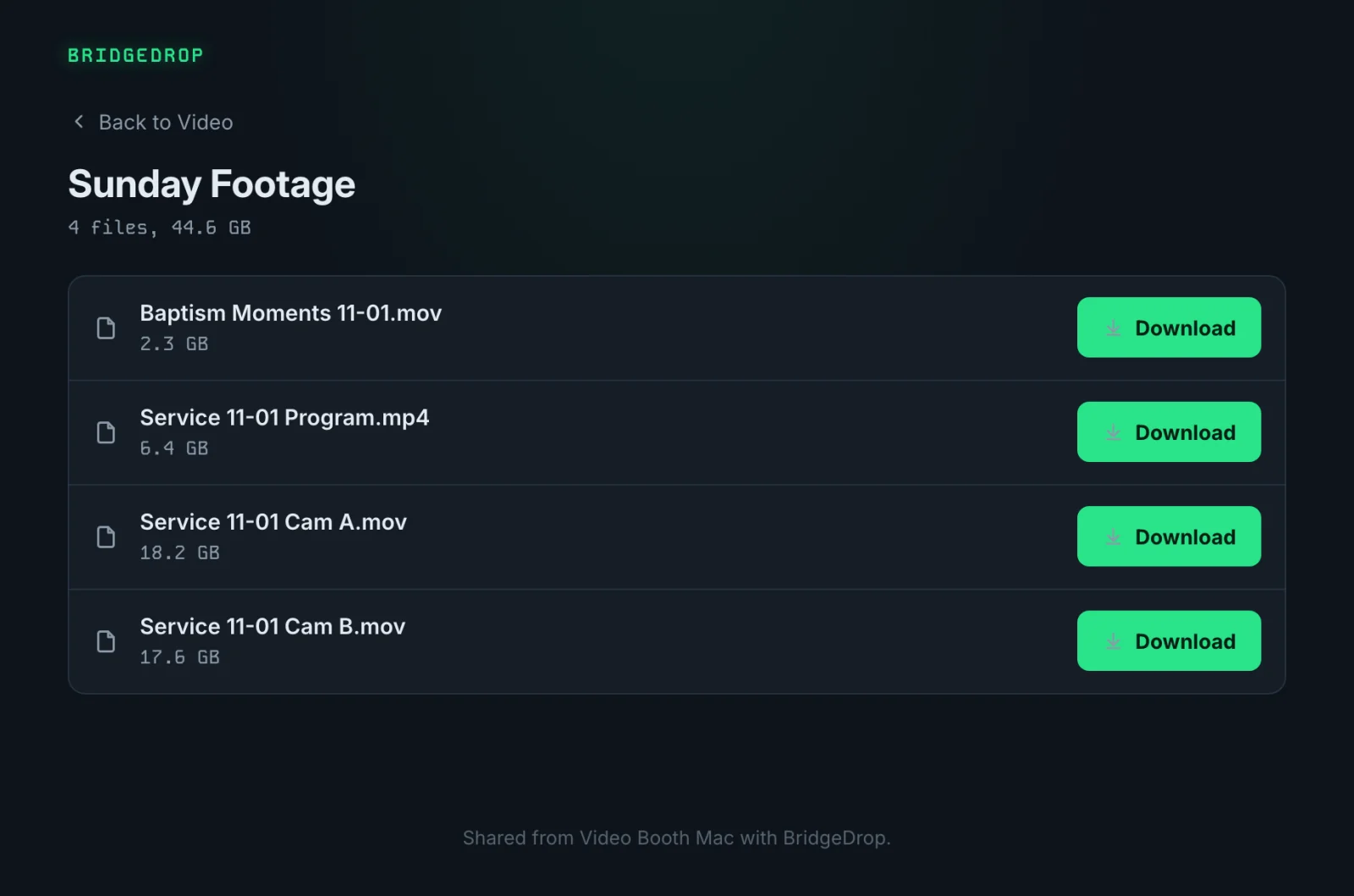
Share with a browser link
Anyone you send it to can download the team's files on the same network. No app needed.
Big files, straight from Mac to Mac.
Straight from Mac to Mac
Files go straight between your Macs on your network. Never the cloud.
Every Mac on the team runs BridgeDrop, and the Macs find each other on their own. Nobody types an address. Files go straight from one Mac to the other over your network and never touch the cloud. Everything between the Macs is encrypted.
Big files are fine
30 GB and more, and it picks up where it stopped.
Files of 30 GB and more are fine. If the connection drops, BridgeDrop waits and picks up where it stopped. A file that would not fit on the other Mac is turned away before anything is sent.
Folders your team can see
Make a folder, drag files in, and your team sees it.
Make a folder and drag files onto it. Everyone on your team sees it under your computer's name, can add files to it and can download from it. Only you can delete files, rename the folder or delete it.
Your team code is the lock
Only people with your team's code see anything.
Start a team and BridgeDrop makes a code, or type your own. Give it to your team. A computer on the network without the code sees nothing, not even your folder names. One Mac can be on several teams, each with its own code and folders.
A browser link for the team
No app needed to look and download, on the same network.
The person who started a team can copy a browser link. Someone on the same network opens it in a browser, sees the team's folders and downloads files without installing anything. They can only look and download. Stop browser link ends it.
Know when files arrive
A notification when a teammate shares a new file.
When a teammate shares a new file in your team's folders, your Mac shows a notification. You can turn it off in Settings.
Always on, in the menu bar
Keeps sharing from the menu bar and starts at login.
Closing the window keeps BridgeDrop sharing from the menu bar, and it starts by itself when you log in. Your folders are there for others while your Mac is on and awake.
Auto delete, if you want it
Old files can clear themselves out, folder by folder.
Turn on auto delete for a folder you made and files older than the number of days you pick are removed for good. It stays off until you turn it on.
Before you download
BridgeDrop system requirements
Not ready for macOS 27 yet
We haven't finished testing our apps on macOS 27. Please stay on macOS 26 Tahoe or earlier for now. We'll update this page as soon as they're ready.
- Mac
- Apple Silicon (M1 or newer)Intel Macs are not supported.
- macOS
- 13 Ventura or later
- Memory
- 8 GB of RAM or more
- Disk space
- About 300 MB
- Network
- Every Mac on the same network, like the same Wi-FiInternet is needed once, to sign in. Nothing in your network or firewall settings needs to change.
- Works with
- Other Macs running BridgeDropSomeone without the app can open the team's browser link on the same network.
- License
- Free with a producerdash.com accountUp to 2 Macs. Sign in once, then it works offline.