ProducerDash™
Your producer desk in one window. Follow your ProPresenter playlist, watch your timers, keep an eye on room SPL and your livestream viewer count, build stage plots, and keep your volunteer team in sync from a single dashboard.
No subscriptions.
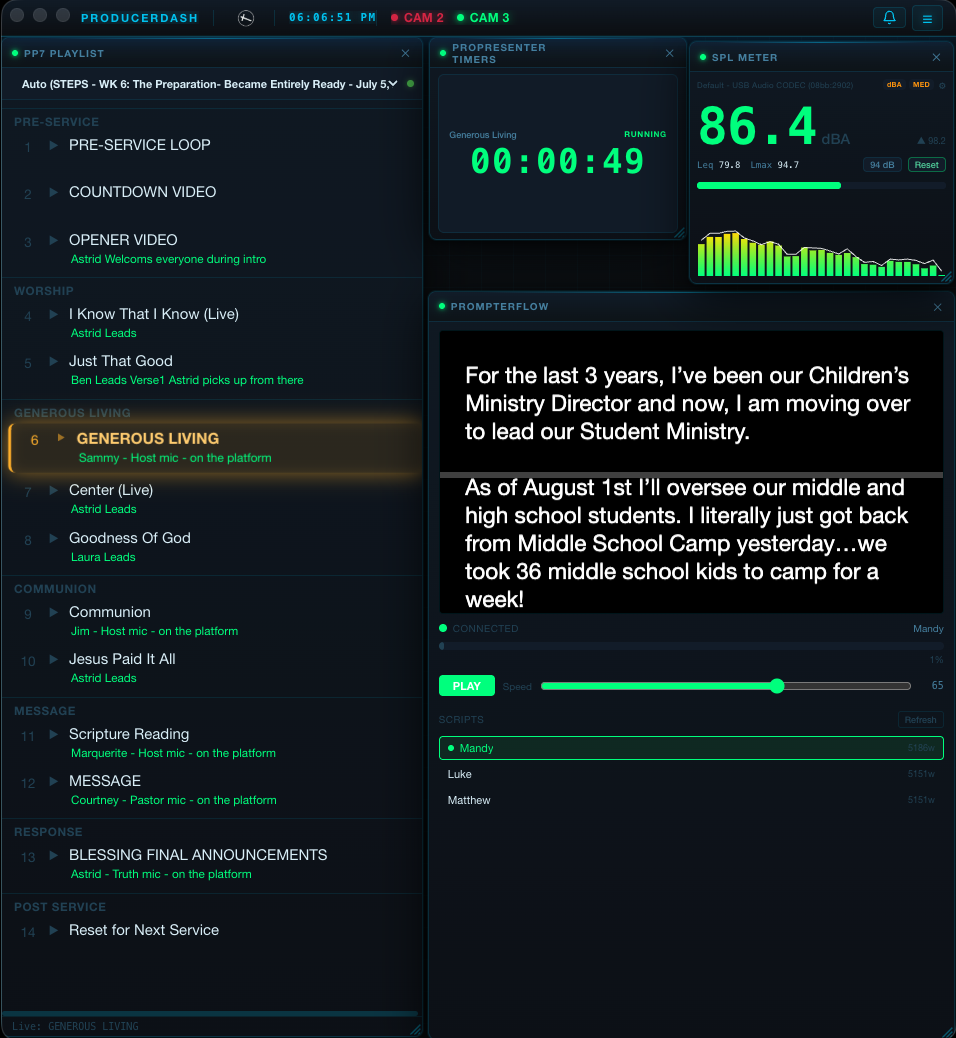
Your Dashboard.
Stop switching between apps at the producer desk. Follow your order of service as ProPresenter moves through it, control PrompterFlow, and watch your sermon and event timers. Right click any item in the order of service to drop a service note into your Service Log. Monitor room loudness in real dB SPL with a built in meter and RTA, and see at a glance whether your livestream is on air and how many people are watching on YouTube. Everything you need to run the service lives in one window.
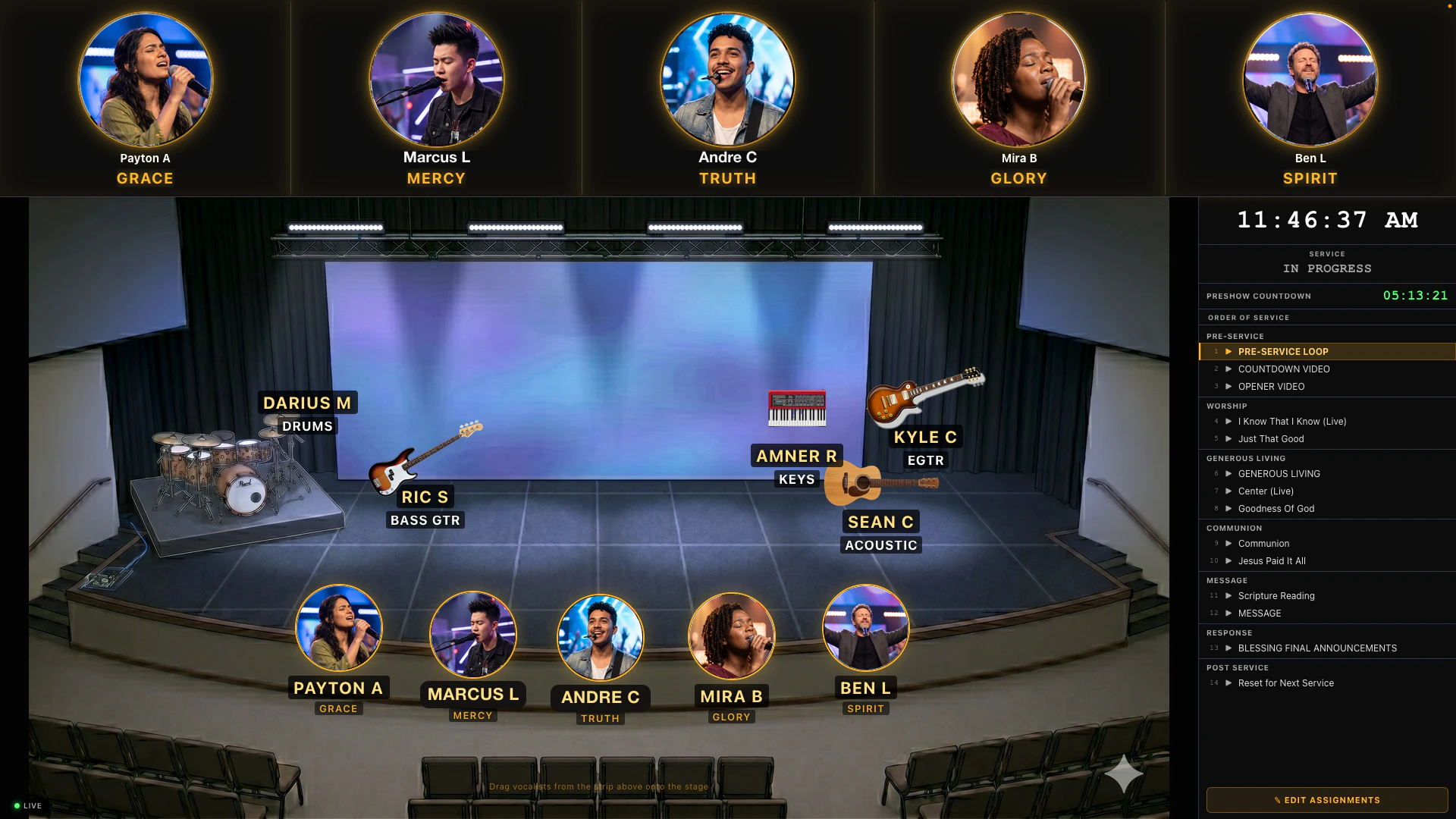
Customizable Stage Plot.
Drag-and-drop vocalists and musicians anywhere on your stage. Assign mic and IEM channels by name. Upload your own stage background. Share the live view with your whole team from any browser on your local network.
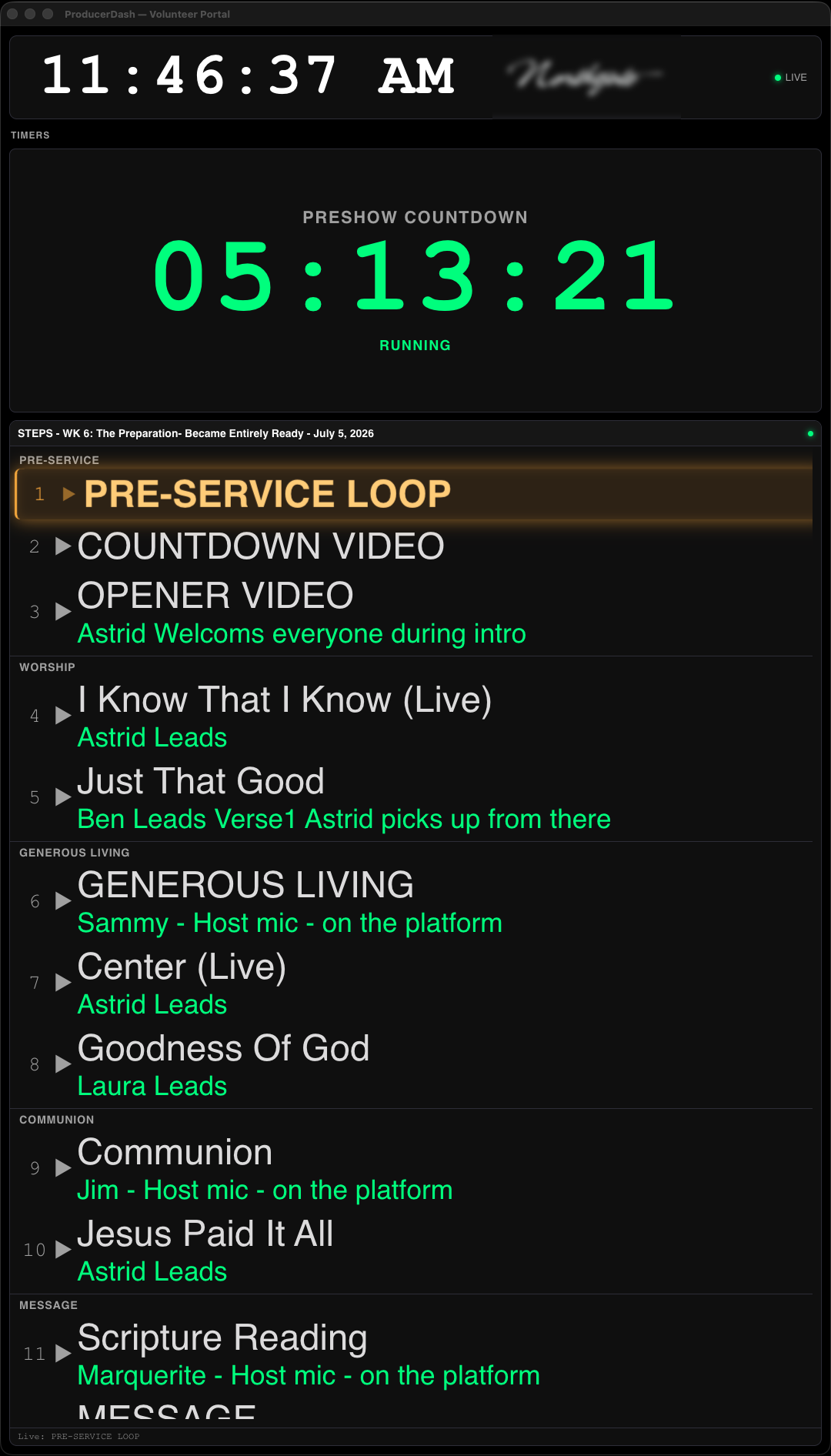
Volunteer Portal.
Your volunteers see the order of service update live in any browser, with the current item highlighted and your notes right there. During a live service they can long press any item to drop a service note straight from the portal, and it lands in your Service Log. No app to install.
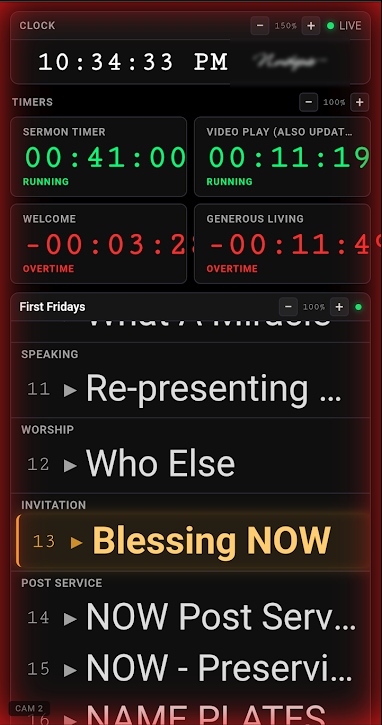
Camera Operator Portal.
Camera operators see the full order of service with their camera's tally overlaid, so they know exactly when they're cued and when they're live. Works in any browser on the local network. No app to install.
Everything you need to run the show.
Live SPL Meter with RTA
See your room level in real time. A calibrated SPL meter and a full spectrum RTA, driven by any USB microphone or audio interface. A, C, and Z weighting, fast and slow response, Leq and Lmax, a peak hold trace, and alerts when the room gets too loud. It also tracks NIOSH hearing safety exposure, showing your dose, projected dose, and safe time remaining, and it serves a big numbers SPL Block you can put on any screen at front of house.
Wireless Mic Monitoring
Every radio microphone in the building on one panel. Add Shure ULX-D, QLX-D, SLX-D or Axient receivers by IP address; Sennheiser Digital 6000 receivers announce themselves on the network and appear on their own. For each channel you get radio signal strength, audio level, battery, whether the transmitter is on, off or muted, and a rolling two minute history, so interference and dropouts show up on a screen instead of in the room. Any mic that loses signal during a service is written into that service's log against whatever was live at the time, which answers the Monday morning question of whether that moment in the second song was the microphone or the mix.
Customizable Stage Plot
Drag-and-drop vocalists and musicians anywhere on your stage. Assign mic and IEM channels by name. Upload your own stage background. Share the live view with your whole team from any browser on your local network.
ProPresenter Integration
Your order of service follows ProPresenter, the presentation software your lyrics and slides run on, highlighting the current item in real time so you always know where you are.
Sermon & Event Timers
Your live ProPresenter timers become big, easy to read tiles on the dashboard, so you can watch a sermon countdown or a worship set from across the room without keeping ProPresenter in view.
Livestream Monitor
A light, read only readout of your broadcast right on the dashboard. See whether you are on air, how many people are watching on YouTube right now, the stream title, and your channel's total views. It only watches, so it never starts or stops anything.
Automatic Service Log
As each part of the service goes live in ProPresenter, ProducerDash stamps the time, measures how long it ran, and captures the room level over it. When the service ends you get a clean report of what happened, when, for how long, and how loud, on your dashboard and in your online account. Anyone on the team can also drop a manual note by right clicking a dashboard item or long pressing it on the volunteer portal.
Camera Tally
Connect a Blackmagic ATEM switcher and every camera operator gets a live tally light on their phone, plus a tally row across the top of your dashboard, so they always know when they are cued and when they are live.
Live Order of Service Portal
Volunteers open a link in any browser on your network and see the full order of service with your notes. Camera operators get the tally for their own position too. No app to install.
Runs on Your Local Network
Once activated, ProducerDash runs on your Mac and talks to your team's devices over your local network. You do not need internet to run it, and being offline never locks you out. Some features reach the internet when it is there, like the livestream indicator, update checks, and cloud sync for your service log, but none of them are needed to run the app.
System requirements
ProducerDash runs on any Apple Silicon Mac (M1 or newer) with macOS 12 Monterey or later and at least 8GB of RAM, on your local network. You will want ProPresenter for the order of service, a Blackmagic ATEM for camera tally, and a USB microphone or audio interface for the SPL meter. Not available for Intel Macs.
Put your stage plot on any screen.
Stage Plot Viewer is a free Mac app that shows your live stage plot on any other Mac on the same network. It finds ProducerDash on its own with no setup, so a spare Mac at the side of stage or in the green room always shows the team exactly where they stand. Double click for a clean borderless fullscreen on a dedicated display.
Free with any ProducerDash account. Grab it from your Downloads page. Universal for Apple Silicon and Intel Macs.
Getting started in 6 steps.
Download, install, and sign in
Sign in to your dashboard and download the latest ProducerDash DMG file, then double click it and drag it to your Applications folder. On first launch, sign in with your producerdash.com account to activate that Mac. Your 7 day trial starts from inside the app, with no card needed.
Connect ProPresenter
Input your ProPresenter IP address and port number in ProducerDash settings.
Build your first stage plot
Add your own custom stage image or use the default. Add band members to your roster and edit their assignments, then drag and drop them into the stage plot.
Share portals with your team
ProducerDash serves the stage plot and order of service portals on your local network. Share the link. Any device, any browser.
Set up camera tally (optional)
In tally settings, turn on tally, pick your Blackmagic ATEM model, enter its IP, and hit Test Connection. Map your camera numbers and ProducerDash mirrors the ATEM tally bus to each operator. Replace with: 'Add or remove camera positions any time and press Save Settings; each position starts serving its own portal straight away.' (Same sentence needs deleting from src/data/docs/producerdash/camera-tally.ts:85 and :90 and from the in-app warning at SettingsPanel/index.tsx:1342 in the same pass, so all three stop disagreeing with the code.)
Run your service
Open ProducerDash on service day. Everything updates in real time.